VEX Engineering Notebook Track & Protect App
Engineering Notebook URLs have been leaked during competitions by volunteer judges oath intentionally and unintentionally causing irreversible damage. Private leaks can be even more harmful.
Most digital notebooks use Google Docs/Slides, but Google doesn't provide viewing logs. This app and VexTeams.org address this problem.
Features:
- Generate short URLs for your Notebook to submit to competitions
- Track all Notebook views with detailed logs
- Optionally, block mobile device viewing
- Collect evidence of unusual viewing activity from multiple locations/devices for filing complaints
Screens
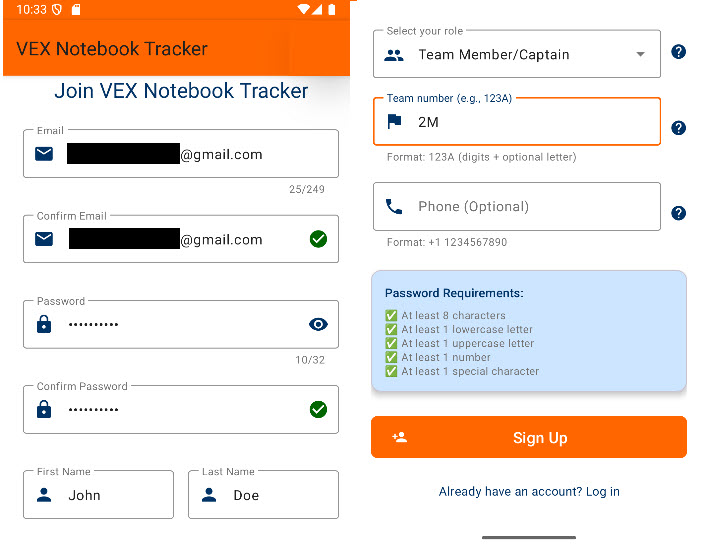
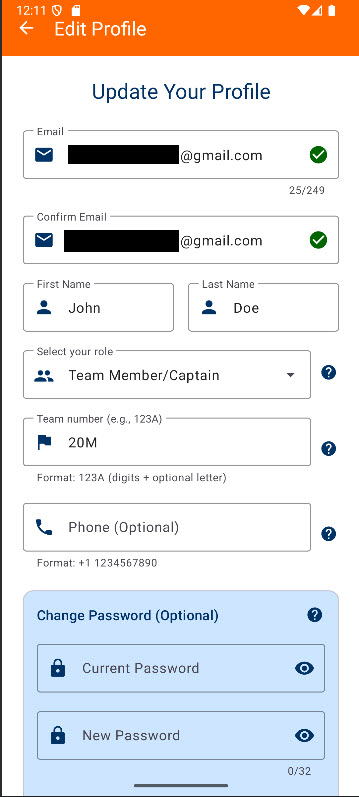
- Email: Use a valid email address. Password reset instructions will be sent here. The system does not verify emails during registration.
- Phone (Optional): Recommended. In case of technical issues displaying the Notebook URL, your contact information will be shown to judges so they can reach you directly due to time constraints.
- Other Fields: Role and team number are not verified during registration. Ensure accuracy for proper account management.
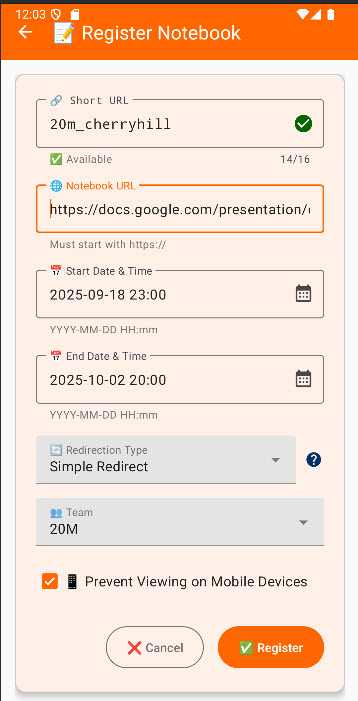
- Short URL: Enter an easy-to-remember phrase (up to 16 characters). Four random characters with underscore prefix will be appended.
- Notebook URL: Paste your complete Notebook URL.
- Start Date & Time: Must be later than the current time but within 14 days from now.
- End Date & Time: Defaults to 14 days from the current time. Set to competition end time. URL is active only between start and end times, but all access attempts are logged.
-
Redirection Type: Currently, the short URL takes to the actual Notebook URL in two different ways.
- Simple Redirect: Browser shows the short URL first, then changes to the actual Notebook URL.
- IFRAME: Displays Notebook using frames with an encrypted URL (judges won't see the actual URL). Google-hosted documents may show frame permission prompts.
- Team: Team Members/Captains see default team number (non-editable). Coaches/Advisors/Mentors can select the team number and specify the team letter (A-Z).
- Prevent Viewing on Mobile Devices: Enable to block mobile devices. Recommended since mobile viewing is unsuitable for large notebooks with complex diagrams.
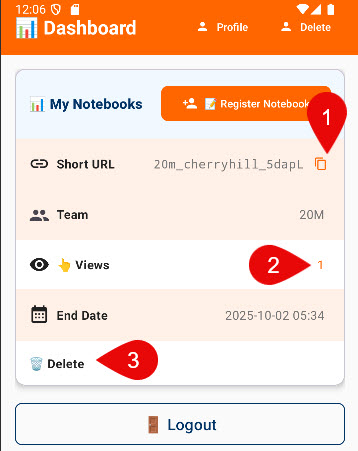
Displays all registered notebooks.
- Copy URL: Click the copy icon to copy the short URL to the clipboard. Clicking the short URL itself won't open the Notebook.
- View Logs: If views are greater than zero, click the number to view access logs.
- Delete Entry: Click Delete button at the bottom of each URL entry (below End Date line).
- Auto-Deletion: Entries are automatically deleted 60 days after the End Date & Time.
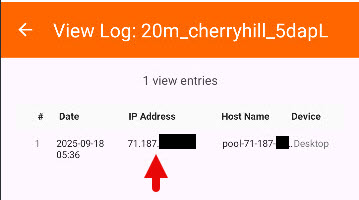
Displays all view log entries showing date & time, IP address, host name, and device type. Click on any entry to see full log details.
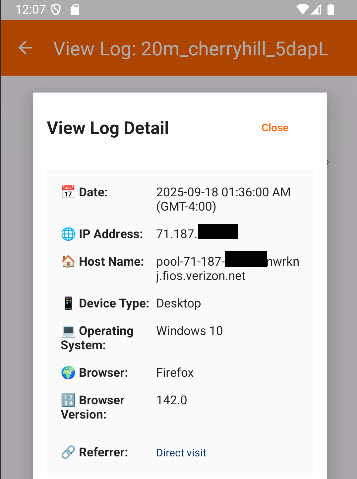
Displays complete log entry details including date & time, IP address, host name, device type, operating system, browser name, browser version, and referrer.
Note: Laptop may display as "Desktop" under Device Type.
Enter your registered email address and click the "Forgot Password" button. Check your email and follow the instructions provided.
Counts are automatically deleted 60 days after the last Notebook URL is deleted. For instant deletion, click the "Delete" button next to the Edit Profile button.